Turn your PC into a TV.
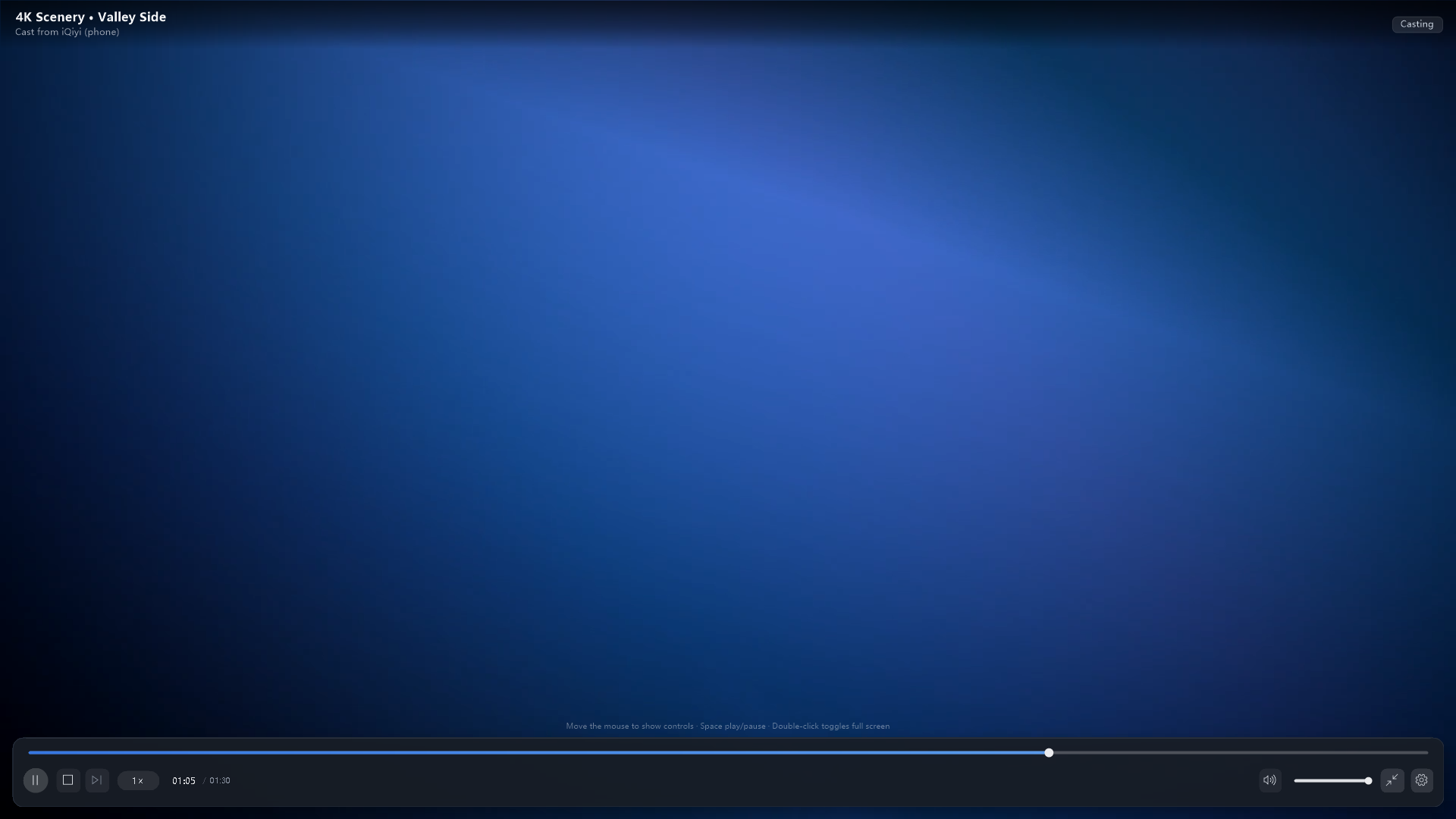
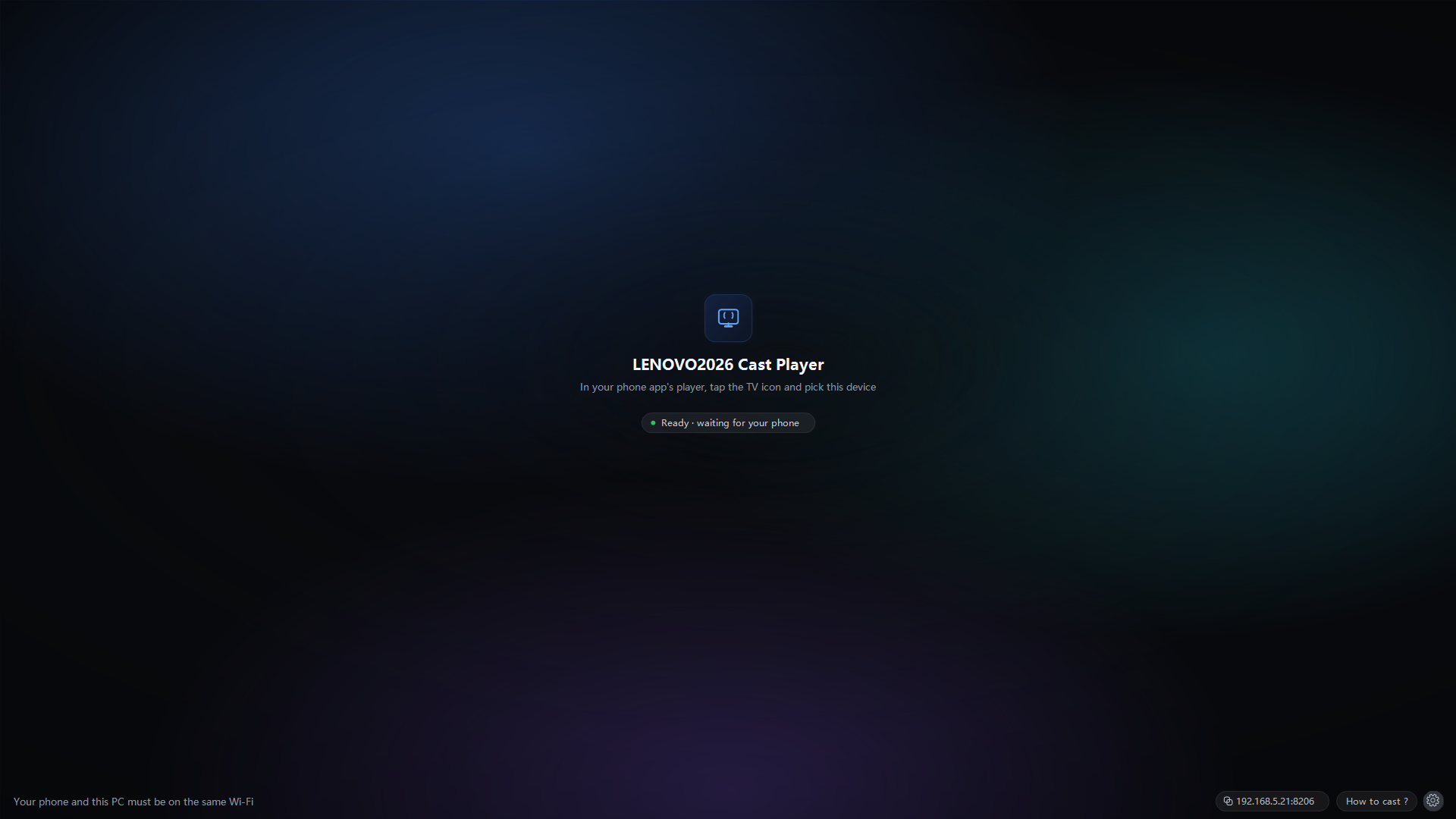
Open a video on your phone, tap the TV icon, pick your computer — the video plays on the desktop in fullscreen and the phone becomes the remote. It is a standard DLNA/UPnP renderer, so it works with any app that supports casting.
Built for the "watch on the big screen" case
A phone screen is fine until you want to actually watch something. This is the shortest path from phone to monitor.
Casting that just works
Standard UPnP AVTransport renderer: SSDP discovery, SOAP control, GENA events. Robust media support through libVLC — MP4, HLS, MKV, HEVC.
Two-way controls
Play, pause, seek, volume and mute stay in sync between the phone and the PC. You can drive it from either end.
Fullscreen on cast
Playback fills the screen the moment the phone connects. Aspect ratio can be auto, 16:9, 4:3 or stretch — switchable while playing.
The PC will not sleep
While casting, sleep and display-off are blocked, then handed back to your power plan afterwards. No more black screen mid-film.
Keyboard shortcuts
Space, arrows for seek and volume, M to mute, F for fullscreen, Home/End to jump. Subtitles and audio tracks are listed when the stream provides them.
Tray resident, single instance
Closing the window keeps it listening in the tray, so the phone still finds it. Double-launching brings the existing window forward instead of creating a second device.
How to use it
Three steps, once. After that it is just the TV icon on your phone.
- Start the app and click the gear → Add firewall rule, then approve the prompt.
- Put the phone on the same Wi-Fi network as the PC.
- In any casting app: play a video → tap the TV icon → pick your computer's name.
Known limits, stated honestly: VIP or rights-restricted content in some phone apps cannot be cast at all — that is a licensing restriction the player cannot bypass. This is a receiver only (DMR), not a media server, and it plays one stream at a time.
Private by construction
The player only listens on your local network. No account, no cloud service, no usage statistics.
Configuration and logs live in %APPDATA%\DlnaCastPlayer and go no further.
Also accepts "Content Archive" casts
If you use the companion Content Archive app on your phone, it can cast to this PC as well — the two casting paths share one player, and whichever connects later takes over.